
Timecode
Timecode starts cues and Actions at a precise time, coming from outside (a sound desk, a video control room, an LTC track) or from the software itself (the Internal timecode).
Three windows:
- Time Input (Setup): what is being listened to;
- Timecode (Playback): what starts, and when;
- Clock (Display): the time in large digits, and the Internal timecode controls (see Clock).
A time is written HH:MM:SS:FF (hours, minutes, seconds, frames). Times are compared as they are displayed: two sources with different frame rates that show the same time are at the same instant, nothing drifts.
Time Input: what is being listened to
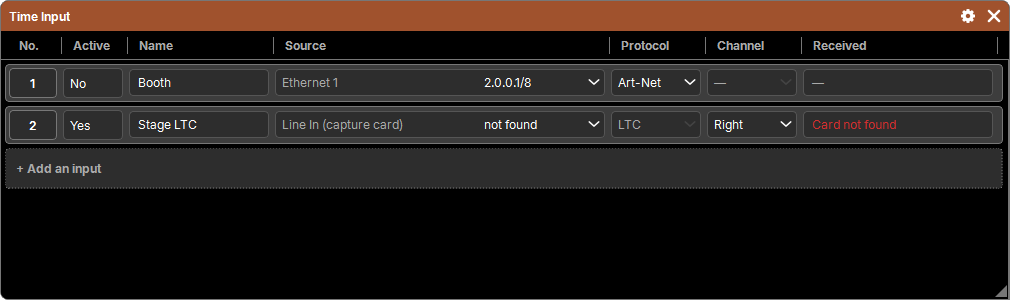
One line per source, with + Add an input. A new input is created inactive: set it up, then switch it to Active.
| Column | Content |
|---|---|
| No. | its number, referred to by Timecodes and Clocks |
| Active | Yes / No |
| Name | a free name |
| Source | a network card (Art-Net timecode) or a sound card (LTC) |
| Protocol | network: Art-Net; sound card: LTC, nothing to choose |
| Channel | sound card: Left or Right |
| Received | the time read right now, or what is missing |
Network: Art-Net
Art-Net timecode (ArtTimeCode) arrives on the chosen network card, on the usual Art-Net port. MTC usually goes through MIDI, which is not supported yet.
Sound card: LTC
LTC (audio timecode) is read by the chosen sound input, on the left or right channel, and decoded by the software, forward as well as backward. Available on Windows and Linux.
- A card is only opened if an active input asks for it.
- Sound cards plugged in or unplugged are followed: a card that disappears is reported as Card not found and kept in the settings; it is picked up again automatically when it comes back.
The Received column
| Display | Meaning |
|---|---|
01:02:03:04 | the time received |
| No signal | nothing on the network for this input |
| No sound | the sound card receives nothing |
| Sound received, no LTC | it hears something, but not a timecode, or its level is too low: check the wiring and the gain |
| Card not found, Card unavailable | the card is not on this computer, or the system refuses it (used elsewhere, permissions) |
| — | the input is not active |
In red: a problem to fix. With nothing received for 1 second, there is no more timecode on this input.
Timecode: what starts
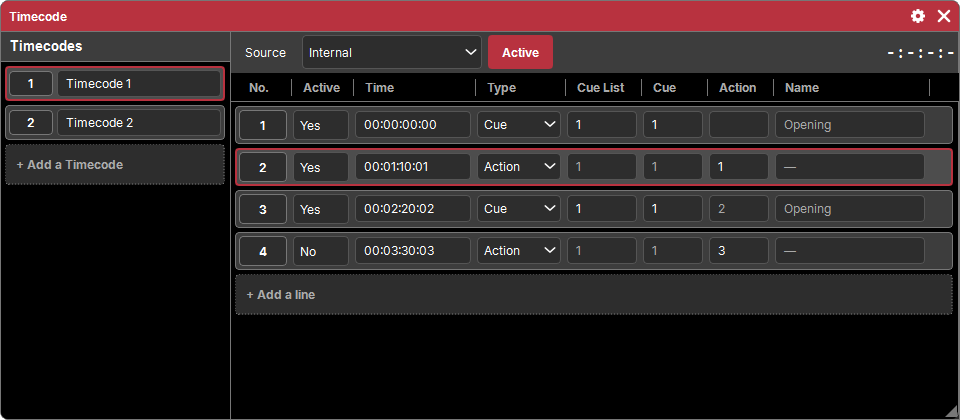
Like the Cue List: on the left the Timecodes, on the right the lines of the one shown.
A Timecode
- Its source: Internal, or a Time input.
- Active: an inactive Timecode triggers nothing.
- Its live time, above the lines.
- + Add a Timecode creates a new one.
You can have several: one per song, for example, each with its lines, or several different sources.
The lines
One line per trigger, sorted by time:
| Column | Content |
|---|---|
| No. | its number |
| Active | an inactive line does not start |
| Time | the instant, HH:MM:SS:FF |
| Type | Cue or Action |
| Cue List, Cue | for a cue: its Cue List and its number. The cue starts with its times, like a Go |
| Action | for an Action: its number (see Actions) |
| Name | the name of what will start |
- + Add a line takes the time running right now (otherwise
00:00:00:00): start the timecode, add a line at the right moment, then correct the time if needed. - The last lines that started are highlighted until the next ones, like the cue that is playing.
- Delete and Copy follow the common sequence; you do not move a line: its time sorts it.
- A renumbered cue or a moved Action: the lines that refer to them follow.
Triggering
At every moment, each active Timecode reads its source:
- time moves forward: the active lines that have passed start, each once, in order;
- it goes back, or jumps by more than 2 seconds (a rewind, a track skip): the software follows, without sending anything that was skipped, and keeps listening;
- it comes back after an absence (or a Play of the Internal timecode): only the lines of that exact instant start.
Triggers do not go into the history, like a press by hand.