
Profiles
A profile describes a fixture model: its DMX modes, its channels, what each value range does. It is the "fixture type" of grandMA and GDTF. Fixtures are patched from a profile (Patch); a profile is built by hand, imported from a GDTF file or downloaded from GDTF Share (GDTF and profile exchange).
The Profiles window ("Add a window" → Setup) is the profile editor.
What a profile contains
| Level | What it is | Example |
|---|---|---|
| Profile | the model, with its manufacturer | Robe Robin 600 |
| Mode | one way of addressing it in DMX | Mode 1, 16 bit, Extended |
| Module | a pattern of channels (attributes in DMX order) | "Main": Pan, Tilt, Dimmer; "Cell": Red, Green, Blue |
| Instance | a module placed at an address of the mode | an LED bar places the "Cell" module 8 times |
| Channel | an attribute on 8, 16 or 24 bits | Pan in 16 bit |
| Function | a DMX range of the channel, with its attribute | 0–9: closed, 10–255: Strobe |
| Predefined value | a name for a range within a function | "Open", "Gobo 3", "Red" |
A simple fixture has a single module ("Main") placed once. The instances of a repeated module become sub-fixtures in the patch (101.1, 101.2…).
The Profiles window
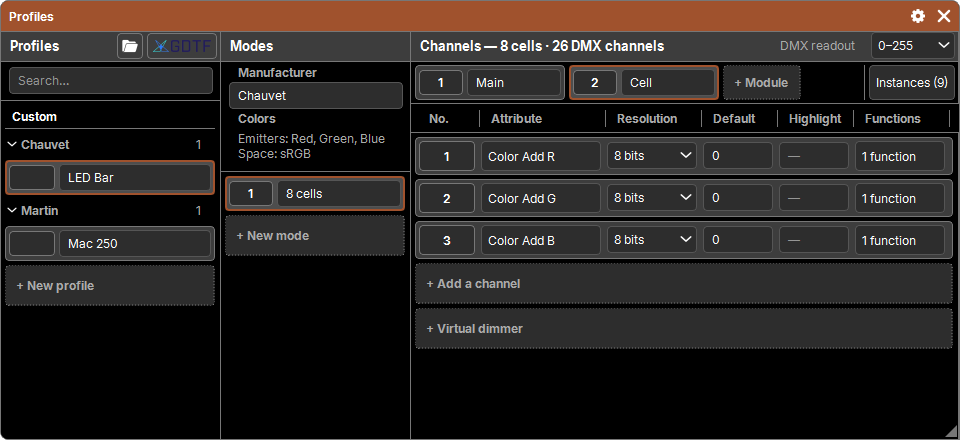
Three columns, from left to right, each resizable by the handle on its edge:
- Profiles: the search, then the list of profiles;
- Manufacturer, colors and Modes of the profile shown;
- the modules of the mode shown (as tabs) and the Channels of the module shown.
The profile, mode and module shown, the expanded brands and the widths are remembered with the window.
The profiles column
- Search… searches brand and name as soon as you stop typing; the brands with results are shown with their count.
- Two sections: Custom (your profiles, then + New profile) and Base (the fixtures shipped with the software).
- Profiles are sorted by brand, collapsed: a tap on a brand (arrow, number of profiles) expands or collapses it. Profiles with no manufacturer are sorted under No manufacturer, at the end.
- A tap on a profile shows it (with no pad action).
- At the end of the header: Export / Import and GDTF Share (see GDTF and profile exchange).
The list stays fast even with thousands of profiles: only expanded brands have cards.
Base fixtures and custom fixtures
- Base fixtures ship with the software (a
Fixtures de base.elsffile) and are updated with it. They cannot be deleted. - Editing a base fixture breaks nothing: on the first change, the software makes a custom copy that replaces it everywhere (the history calls it "base → custom"). The base fixture itself keeps its content.
- + New profile creates "Profile N" with a "Mode 1".
- Copy then a tap on a profile makes a custom copy ("… (copy)"), shown at once; with a selection of profiles, all of them are copied.
- Delete then a tap on a profile deletes it (except a base fixture).
- The name is typed directly in the card.
A show keeps its own copy of its fixtures' profiles: editing or deleting a profile in the library does not change a show that is already patched, which stays portable from one computer to another.
Manufacturer, colors and modes
- Manufacturer: typed in its field; it files the profile under its brand.
- Colors (if any): the emitters, filters and color space read from a GDTF file. For information.
- Modes: number and name. A tap shows the mode. + New mode adds one ("Mode N"). Copy copies a mode at the end; Delete deletes it (a profile keeps at least one mode).
Modules and instances
Above the channel table, the module tabs of the mode: number (button) and name (editable). They scroll with a drag.
- + Module adds an empty module ("Module N").
- Delete then a tap on a module's number deletes it with its instances.
- Instances (N), on the right, opens the Instances — mode popup.
The Instances popup
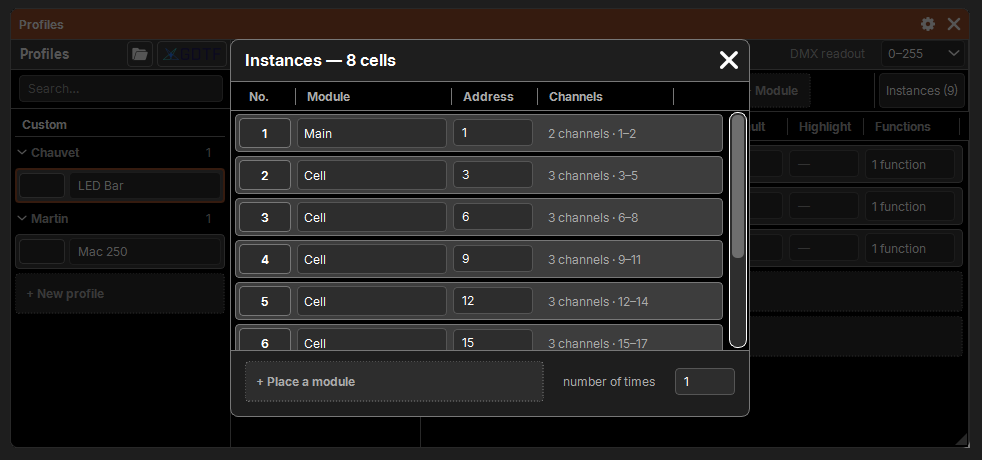
The instances of the mode, in order: this is the order of the future sub-fixtures.
| Column | Purpose |
|---|---|
| No. | the instance's rank (pad object) |
| Module | the module placed; a tap changes it (for the whole selection if the cell is part of it) |
| Address | its first address in the mode; refused if it overlaps another instance |
| Channels | the channels it occupies |
- At the bottom: + Place a module and number of times: the chosen module is placed N times, after what is already occupied. Refused if the mode would exceed a universe.
- Delete on a number removes the instance (one instance always remains).
Channels
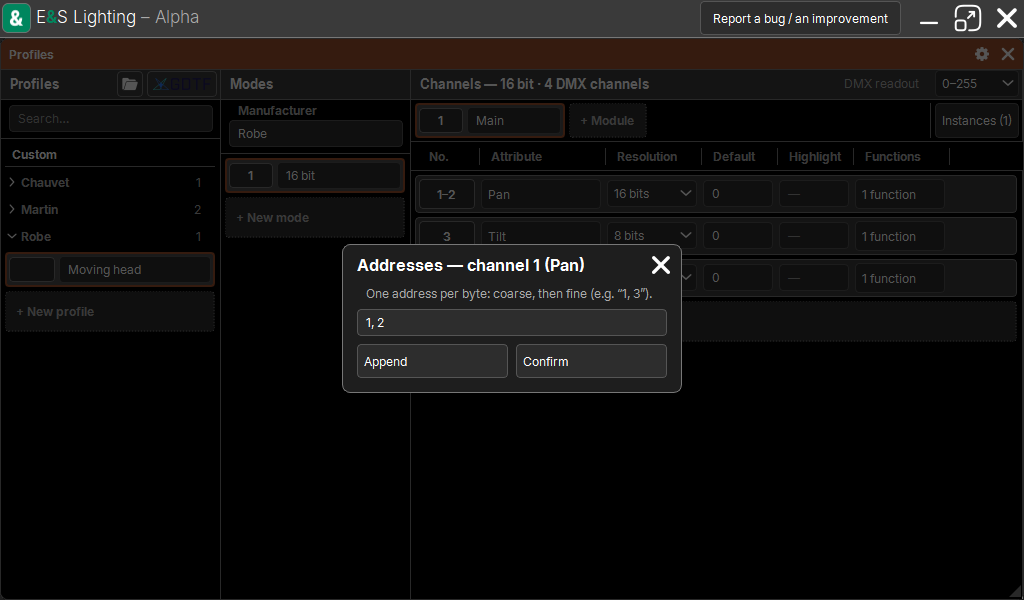
The channels of the module shown, in DMX order, with their addresses relative to the module.
| Column | Purpose |
|---|---|
| Address | the channel button: "3", "3–4" for a 16-bit channel, "1 + 3" if the fine byte is elsewhere, "virtual" for a channel with no address |
| Attribute | a tap opens the choice families → attributes |
| Resolution | 8, 16 or 24 bit |
| Default | the resting value, in the chosen DMX readout |
| Highlight | the value the attribute takes in Highlight; empty: none |
| Functions | the number of functions; a tap opens their popup |
- + Add a channel opens the choice families → attributes, without those already in the module: an attribute appears only once per module.
- A tap on a channel's address (with no pad action) opens the Addresses popup: one address per byte (coarse, then fine, then ultra: "1, 3" for a separate fine byte). Append makes them automatic (after the previous channel), Confirm saves. An address already taken or outside the module is refused, and the message shows in the command line.
- Delete then a tap on the address deletes the channel (the whole selection if it is part of it).
- Move then the channel, then another channel: it takes its place, the ones below move down. A tap on + Add a channel sends it to the end. Move acts on the tapped channel alone, never on the selection. No Copy: an attribute only once per module.
- Address, Resolution and Default can be selected (a rectangle, or the whole column by its title): changing a selected cell changes the whole selection.
- Changing the resolution is refused if functions or values would merge.
Virtual dimmer
An LED cell often has red, green and blue, but no Dimmer. + Virtual dimmer adds to the module a Dimmer with no address (shown "virtual") that multiplies its colors: you set the cell's intensity like any other fixture's, and the output computes the colors. It sends nothing in DMX.
DMX readout
Above the table, DMX readout chooses how DMX values are written: 0–255, 0–65535 or %. It is a setting of the computer, like grandMA's "DMX Readout".
- In 0–255, a 16- or 24-bit channel is written with one decimal (127.5) and its maximum is 255.
- Typing follows the same readout (comma or point, "%" optional).
Functions and predefined values
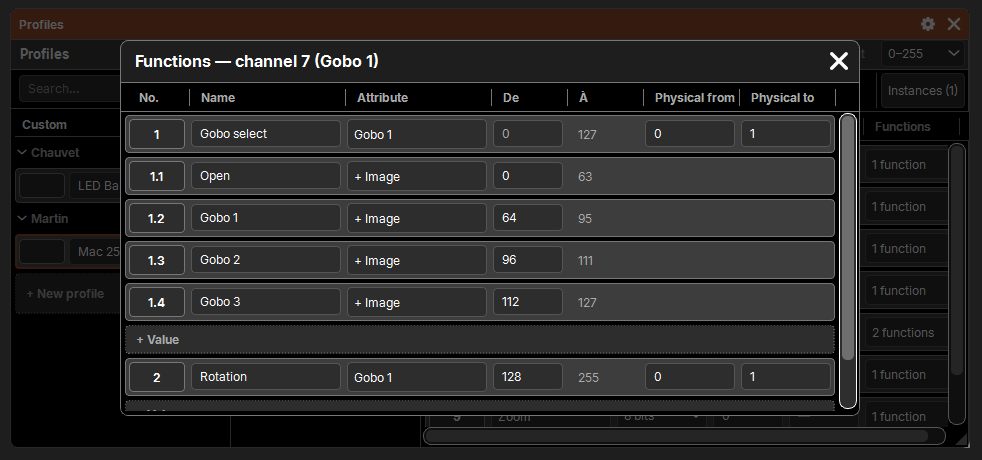
A tap on Functions opens the Functions — channel popup: each function (number "2") followed by its predefined values (numbers "2.1", "2.2"…).
| Column | Purpose |
|---|---|
| No. | pad object (Delete) |
| Name | "Open", "Strobe", "Gobo 3"… |
| Attribute | the function's attribute (often the channel's, sometimes another one: a Shutter channel with a Strobe function); for a value, its color or image instead |
| From | the start of the range (the only field to type) |
| To | the end, computed: the range stops where the next one begins |
| Physical from, Physical to | the function's physical range in the attribute's unit (e.g. −270 to 270 °) |
- Ranges always follow each other: the first function starts at 0, and you only type the starts. A start outside the function or the neighboring values is refused.
- + Function splits the last function in two; + Value splits the function's last value ("Function N", "Value N").
- Delete on a number: the neighbor takes over its range. A channel keeps at least one function.
- The number, the name and the attribute can be selected (a title: the whole column); changing a selected cell changes the whole selection.
Value colors and images
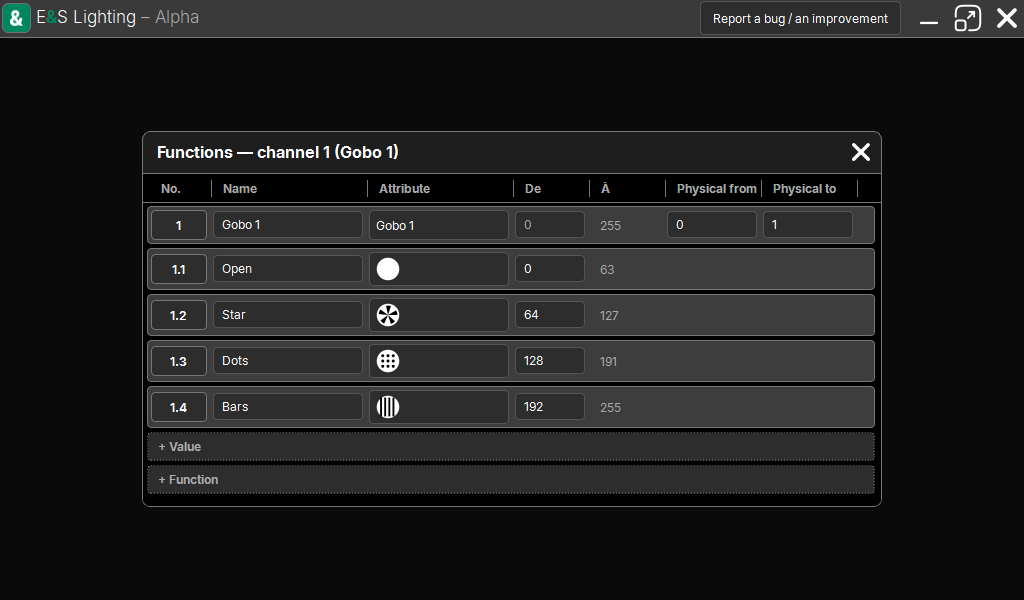
Depending on the wheel of the function's attribute (Attributes window):
- Color: the cell shows the value's color swatch (split for a dual color), or + Color. A tap opens Color of the value, where you choose one or more.
- Image: the cell shows the thumbnail, or + Image. A tap picks an image file (Image of the value); Delete then a tap on the image removes it. Images go with the profile, reduced to thumbnails.
The popup follows Undo and Redo while it is open, and closes if the channel disappears.