
Effects
E&S Lighting effects combine grandMA2 effects and grandMA3 phasers. An effect is one line per attribute (Dimmer, Pan, Tilt, Red…) made of steps that loop, with its speed, and offset from one fixture to the next by the Pattern.
Opening the effects
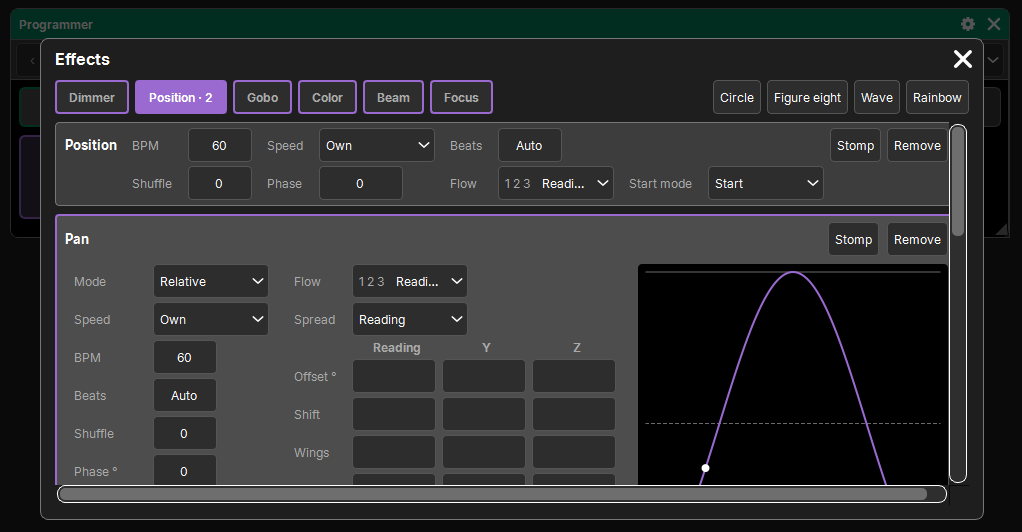
Two paths lead to the same editor:
- in the Programmer window, the Effect button switches the tiles to Effect mode (dark purple background); a tap on an attribute's name opens the large effects popup, on that attribute. It follows the programmer and closes if the selection changes;
- the Effects window (Programming), to place in a View, shows the same editor permanently and follows the selection.
In Effect mode, the Programmer tiles show what the current step contains (its value or the name of its preset; "–" if there is nothing), and are outlined in purple if the attribute has an effect (darker if it is inactive). The toolbar shows "‹ Step 1 ›" and the transition of that step (see The steps).
The editor
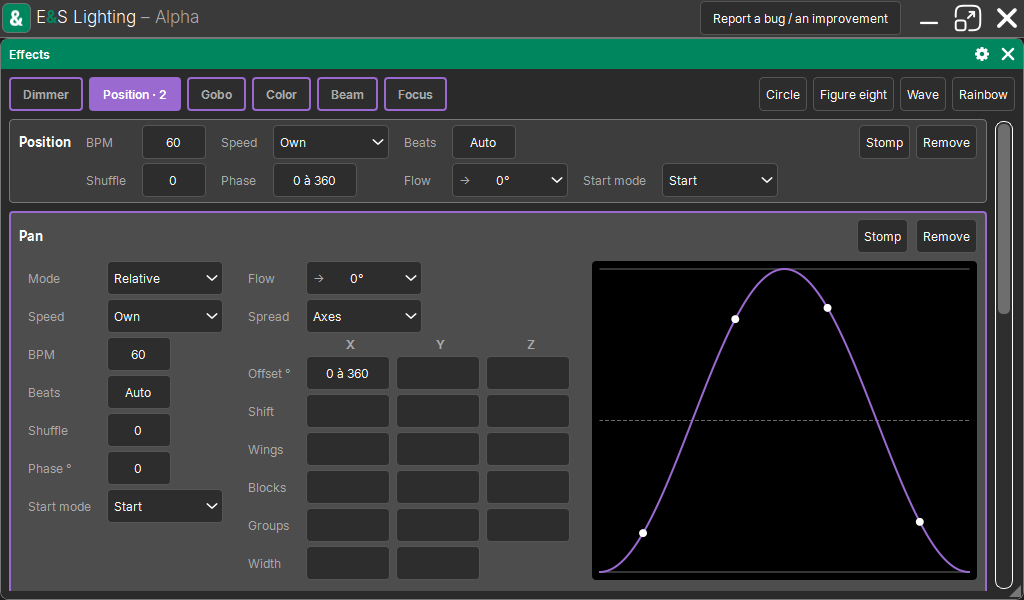
- At the top: the families of the selection as categories ("Position · 2": two lines have an effect there) and, on the right, the ready-made shapes.
- Below: the band of the chosen family, which sets all its lines at once.
- Then the lines of the family: those that have an effect, the tapped attribute, and "+ Shutter"… to add its other attributes.
A line applies to the whole selection. The editor, like the programmer, is outside the history.
Ready-made shapes
| Shape | What it gives |
|---|---|
| Circle | Pan and Tilt as sines, Tilt offset by 90° (relative, ±30° or ±15% depending on the range) |
| Figure eight | a figure eight in Pan / Tilt, Tilt twice as fast |
| Wave | a wave offset from 0 to 360 over the selection |
| Rainbow | three steps red, green, blue (or cyan, magenta, yellow depending on the fixtures) |
A shape gives the lines of the attributes the selection has; the others are ignored.
An effect line
Each line shows its name, Stomp, Start / Remove, then:
- on the left its settings;
- in the middle its copy of the Pattern (the same table as the Pattern panel);
- on the right the curve of one cycle, with one dot per fixture moving at the pace of what is really output;
- below its steps.
With no effect, the line shows the one it would have (relative for Pan and Tilt, bottom to top otherwise): Start, or the slightest change, applies it.
Settings
| Setting | Role |
|---|---|
| Mode | Absolute: the effect's values replace the fixed value. Relative: deviations around what would be output without it (the fixed value, or what is underneath) |
| Speed | Own (the line's BPM) or a Speed Master: the line then follows its speed |
| BPM | beats per minute, 60 by default |
| Beats | Auto: the loop lasts the sum of the Sizes; a number: the loop lasts that many beats, its steps stretched or squeezed |
| Shuffle | shuffles the fixtures for this line only (a Dimmer that twinkles while Pan and Tilt keep a clean wave) |
| Phase ° | the line's own offset, for all its fixtures (the circle: Tilt at 90°) |
| Start mode | where the effect starts (see below) |
Start mode
| Start mode | Behavior |
|---|---|
| Start (default) | at step 1 when the effect is started: on its cue's Go or when it is given in the programmer; retouching it does not restart it |
| Synced | on the common clock (or the beats of its Speed Master), as if it had been running in the background: all lines at the same speed stay together |
| Resume | where it had stopped on this cell |
| Step N | at the start of that step |
Changing the speed of a running effect does not make it jump.
The steps
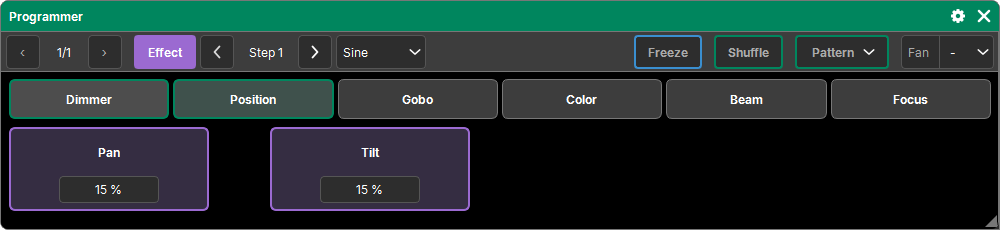
Steps are counted from 1 and form a loop, like a grandMA3 phaser. Each step starts from the previous step (the first one, from the last), reaches its value according to its transition, and stays there until the next step.
| Column | Role |
|---|---|
| Transition | Square (the value from the start of the step), Ramp (even fade over the whole step), Sine (smooth fade) |
| Rise %, Fall % | for a Square: soften its edges, in % of the step |
| Size % | the step's duration in % of a beat: 100% = one beat |
| Value | in the attribute's unit, or a preset of the family (specific to each fixture) |
- "+ Step" adds a copy of the last one; a step's cross removes it.
- The basic effect: two Square steps, 100 then 0, one beat each.
- A true sine: Step 1: 100 as Sine, Step 2: 0 as Sine.
- A single step: a fixed value.
- Between two values of different functions, or on a stepped function (wheel, gobo), a Ramp or a Sine switches halfway.
Filling the steps from the Programmer
In Effect mode, "‹ Step N ›" chooses the step your settings go to:
- a typed value in a tile goes into that step (a range "0 to 100": each fixture its own);
- a tapped preset becomes that step for all its attributes (a color preset: Red, Green, Blue…); a fixture missing from the preset keeps the previous step's value;
- the arrows go up to the last step + 1, to add one;
- the transition list next to it follows the step, and also applies to the steps to come.
The family band
It sets all the lines of the family at once: BPM, Speed, Beats, Shuffle, Phase (the Pattern offset on X, "0 to 360"), the Pattern's Flow, Start mode, Stomp and Remove. An empty field means the lines have different values.
Stomp
A line's Stomp button turns it into an effect stop on those cells:
- in the programmer, it also stops the effects that the Cue Lists are running on those cells (their fixed values stay);
- it is a toggle: a second tap restarts the effect as it was;
- it can be given even without an effect (on the line, or on the whole family through the band): a Stomp alone, which is stored in a cue like an effect. For example on a Flash or Temp Button, to cut the effects for the duration of the press.
Storing an effect
An effect is stored like a value, with Store:
- in a cue: see Storing cues;
- in a preset of its family: see Presets.
It keeps everything: its steps, its speed, its offset, its copy of the Pattern, each fixture's cell in the grid and the preset it comes from.
Effects in Cue Lists
- Effects have their own tracking, separate from that of values: an effect continues from cue to cue until a cue gives another effect to the same attribute, or a Stomp. A fixed value does not stop it (a relative effect runs around it).
- One effect per cell (fixture, attribute): two effects never stack. Between Cue Lists, the one with the highest priority wins, then the most recent; the others stop, their fixed values stay.
- A cue's effects come in with the cue's fade.
Taking over an effect played by a cue
For an attribute with no effect in the programmer, the editor shows the one a Cue List is running: "Played by Cue List 1 · Cue 2". The slightest change puts it in the programmer as it is running, to adjust it; Update then puts it back into the cue.
Speed Masters
A line whose Speed is a Speed Master follows its tempo: several effects stay in sync, and a tap in rhythm (Learn) realigns them all. See Masters and Speed Masters.