
The command pad
The command pad is the on-screen equivalent of a console surface. Open it with "Add a window" → Control → Commands. It always keeps the same size and its keys never move: you find them by touch.
E&S Lighting follows the grandMA rule: action first, object second. Press Delete, then the cue to delete; Store, then the group to store into. With no action chosen, pressing an object does its normal job (select the cue, recall the group, load the view…).
The command line
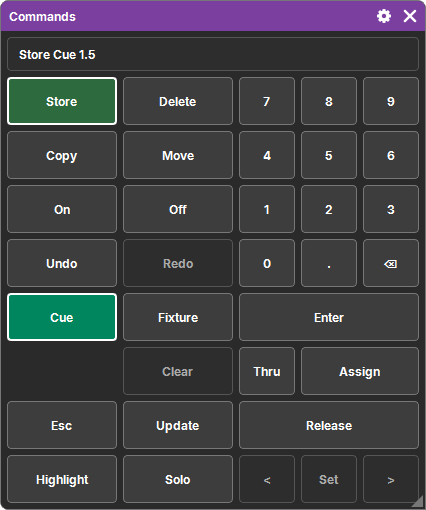
At the top of the pad, the command line shows what is in progress: "Store Cue 1.5", "Copy 3 views at…", "Fixture 1 Thru 50".
- Grayed out ("Command line"): nothing is in progress.
- In white: the command you are composing.
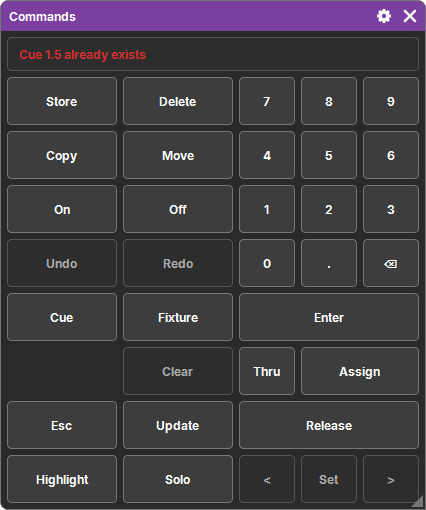
- In red: the command was refused, and why ("Cue 7 does not exist", "No Cue List shown"…). The message stays until the next key.
Most messages of the software go through this line: keep a pad open somewhere.
Action keys
An action key that is lit waits for its object; it takes its color, and the buttons of the objects it can act on take the same color. Pressing the lit key again turns it off.
| Key | What it does |
|---|---|
| Store | Stores the programmer into the object pressed next: a cue, a group, a preset, a view, a Fader or a Button (in its Cue List). On an object that already exists, a question offers Replace, Merge… |
| Delete | Deletes the pressed object, or the whole selection if the object is part of it. With a selection, Enter is enough. |
| Copy | First press on an object: the source. Second press: the target, where the copy arrives. Enter alone: after the last object. |
| Move | Like Copy, but the source leaves its place. |
| On | Turns on: a main window that is off, a Fader's Cue List (immediately, without a fade), an attribute or a family in the programmer (at its current value). |
| Off | Turns off: a Cue List, a main window; in the programmer, removes fixtures or attributes. |
| Assign | Assigns one object to another: a Cue List to a Fader or a Button, an object in a Layout, a group in a World. |
| Release | The targeted attributes get a Release in the programmer: stored in a cue, it hands control back to what lies underneath. |
The details of Delete, Copy and Move, common to every list, are in Lists, tables and objects.
Park and Unpark
A quick double press on Off turns it into Park; on On, into Unpark. Park freezes fixtures at what they are outputting right now: nothing goes over them anymore (neither Cue List nor programmer), only the grand master still applies. Unpark frees them.
- Park Fixture 1 Thru 5 then Enter: these fixtures.
- Park then Enter alone: the programmer selection.
- A double press on Fixture writes "Park Selection": Enter parks the selection.
See Park.
Objects: Cue and Fixture
Cue
Cue, a number, Enter acts on the Cue List shown (the one chosen in the Cue List window):
| Command | Effect |
|---|---|
| Cue 5 Enter | selects cue 5 |
| Store Cue 5 Enter | stores the programmer into cue 5 (created if it does not exist, otherwise Replace / Merge) |
| Store Cue 2 Thru 8 Enter | stores into every existing cue from 2 to 8, in one go |
| Delete Cue 5 Enter | deletes cue 5 |
| Copy / Move, press a cue, Cue 7 Enter | the cue (or the selected cues) arrives at 7 |
A cue number has up to 4 digits and 2 decimals: 1, 1.5, 12.25. The keyboard comma counts as a point.
Fixture
Fixture, a number, Enter selects fixtures in the programmer:
| Input | Fixtures |
|---|---|
| Fixture 5 | fixture 5 |
| Fixture 1 Thru 50 | from 1 to 50, in this order |
| Fixture 50 Thru 1 | the same, from 50 to 1 (the order matters for spreads) |
| Fixture 101.3 | sub-fixture 3 of fixture 101 (an LED bar, a multi-cell fixture) |
| Fixture 101.1 Thru 104.8 | the sub-fixtures, from 101.1 to 104.8 |
| Fixture 101.0 | the head of fixture 101 alone (without its sub-fixtures) |
What does not exist in the patch is skipped. With an action:
- Off Fixture 1 Thru 5 Enter: they leave the programmer and the selection;
- Release Fixture 1 Thru 5 Enter: all their attributes get a Release;
- Off Enter alone, Release Enter alone: the programmer selection.
The numeric keypad
| Key | What it does |
|---|---|
| 0 to 9, . | the object number, or a value |
| Thru | a range: "1 Thru 50" |
| ⌫ | erases the last character; otherwise the object; otherwise the action |
| Enter | runs the command line |
A refused digit (an impossible number: too many digits, two points) is simply not written.
Typing into a field
When a field is being edited (a name, a Programmer value, an address…), the digits, ., ⌫ and Enter of the pad go into that field, like a keyboard: you can set everything with your finger, without a physical keyboard. Pressing the pad does not lose the editing in progress.
A value for the selection
With selected cells that accept a value (for example the Patch addresses), digits typed without an action are written in the command line with the name of what they set ("Address 1.1"). Enter gives the value to the whole selection, in the order the cells were selected: for addresses, the first gets 1.1 and the next ones follow. See Selecting.
Undo and Redo
Undo undoes the last change to the show; if a command is in progress on the pad, it cancels it first. Redo redoes what was just undone. They are grayed out when there is nothing to do. See Undo and Redo.
Clear and Esc
Two keys to "erase", which do not target the same thing.
Clear: the programmer
Clear only touches the programmer, in three steps, as on grandMA:
- if there are selected fixtures (or a Pattern): the selection is released;
- otherwise, if there are active values: they are deactivated. They stay in the programmer (the light does not move), but will no longer go into a store;
- otherwise: the programmer is emptied, effects included.
If you are going through the selection fixture by fixture (< >), Clear first goes back to the whole selection. Grayed out: there is nothing to clear.
Esc: everything else
Esc (or the keyboard Esc key) acts outside the programmer, in two steps:
- if there are selected cells (in a list, a table, or objects of a Layout in Set mode): it only deselects them;
- otherwise: it cancels what is in progress on the pad (the lit action, the command line, the red message).
Highlight, Solo, Set
| Key | What it does |
|---|---|
| Highlight | toggle: the selection goes to its Highlight values (defined per channel in the profile: full intensity, open white…), above everything. To find fixtures. |
| Solo | toggle: the intensity of all other fixtures goes to 0. Without a selection: nothing. |
| < > | go through the selection fixture by fixture: what you set only applies to the current fixture. In a loop. |
| Set | one press: back to the whole selection; another: back to the sub-selection you came from. |
Holding Set with > or < splits the selection: 1 in 2, 1 in 3… (grandMA's Interleave); < and > then go from one part to the next. With a mouse or a single finger you cannot hold Set and press elsewhere: hold Set for half a second then release it, it stays lit until the next press. These three keys are grayed out without a selection.
Update
Update opens a popup with what the programmer can update: first the presets its active values come from (even if adjusted since), then the current cue of each Cue List that is playing. Each card says what it is ("Color 3", "Cue 2"), on which executors it plays and which attributes change; Update applies it. Only what the target already contains is updated: nothing is added. With nothing to update, the popup says so.