
The screen and windows
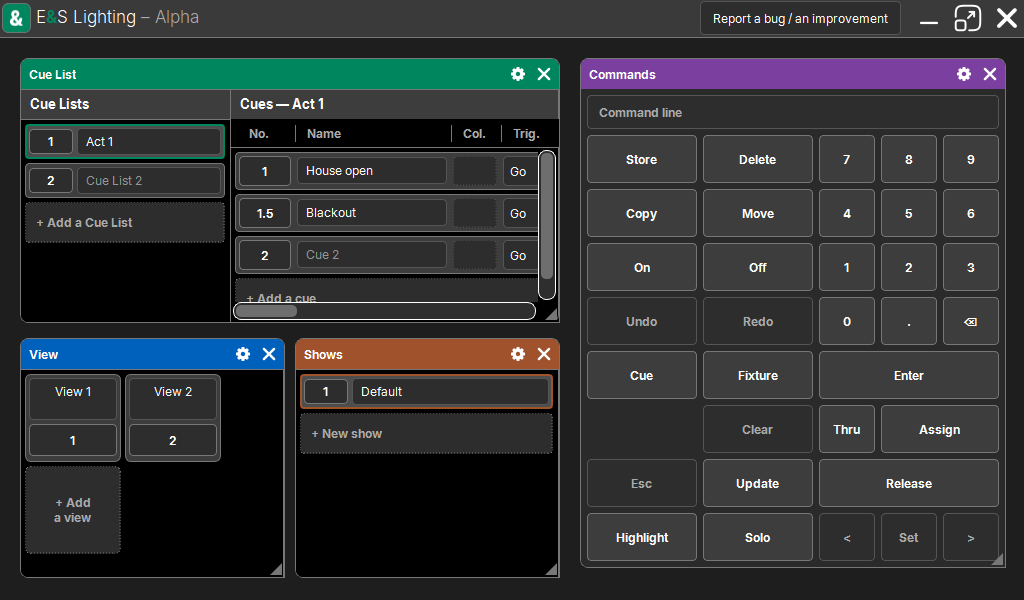
E&S Lighting has no menus: the screen is a free area where you place the windows you need (Cue List, Programmer, Layout, command pad…), at the size you want. An arrangement is kept in a View so you can recall it in one move.
The header
At the top of the main window:
- the logo and the name, followed by the version stage ("– Alpha");
- on a secondary screen, the name of that screen;
- Report a bug / an improvement (see License);
- minimize, maximize, close. F11 switches full screen on and off.
Adding a window
Tap (or click) an empty spot of the area: the Add a window popup opens. The chosen window will open where you tapped.
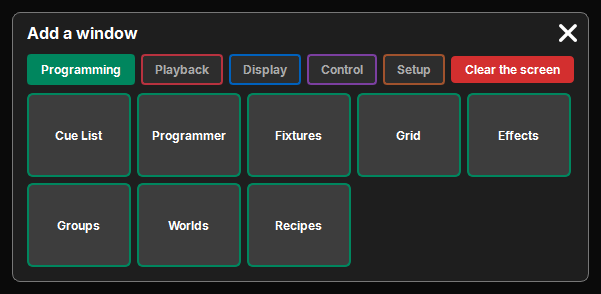
Windows are sorted into categories, each with its color, which you find again on the window headers:
| Category | Windows |
|---|---|
| Programming | Cue List, Programmer, Fixtures, Grid, Effects, Groups, Worlds, Recipes |
| Presets | one preset pool per attribute family of the patch (Dimmer, Position, Color…) |
| Playback | Faders, Buttons, Speed, Timecode |
| Display | Layout, Image, View, Windows, Clock |
| Control | Commands, Actions, History |
| Setup | Shows, Attributes, Profiles, Patch, DMX Output, DMX Input, Time Input, About, License, Language |
The last category chosen is remembered. Clear the screen (in red) closes every window of this screen.
Moving and resizing
- Move: drag the window header.
- Resize: drag the small triangle in the bottom right corner. The window edges only serve its content, you never grab them by mistake.
- A window never covers another one: when you move or enlarge it, it stops on contact with its neighbor and slides along it.
- The cross in the header closes the window.
The gear
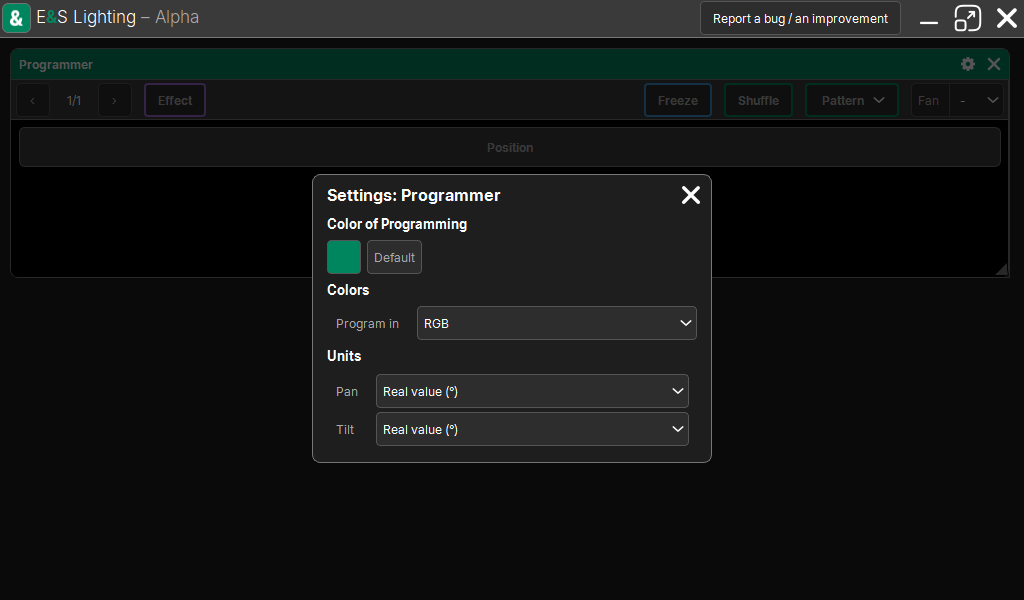
The gear in the header opens the window settings:
- the color of its category (a preference of the computer, applied to every window of the category);
- then what is specific to the window: columns shown, units, colors in RGB or CMY, etc.
These settings are kept with the window, and in Views.
Several screens
The Windows window (Display) manages the main windows: one per connected screen, each with its area and its windows. A screen is set On or Off. Views recall all screens at once, or only those they include.
Lists and tables
Most windows show lists of cards (cues, groups, profiles…):
- a card has a name you type directly, and a number button used as the object for the command pad (see the principles);
- + Add… at the bottom of the list creates the next object, without a popup;
- on a touchscreen, one finger draws a selection rectangle, two fingers scroll.
Language
"Add a window" → Setup → Language: Français or English. The change applies at the next start. By default, the software uses the Windows language.