
License
The license is free. It tells us who uses the software during the Alpha and lets us keep you informed. Without an active license, the whole software works (programming, cues, layouts…) except the DMX output, which stays off.
Activating
On first start, the Activate E&S Lighting popup opens. Enter the e-mail and password of your account on the license website, then Activate.
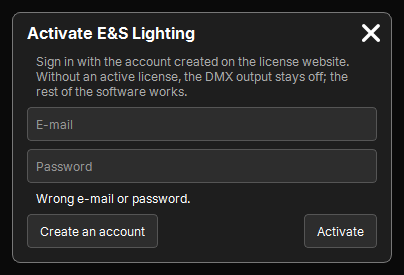
- No account yet: Create an account opens the website.
- The computer is registered on your license: 2 computers at most per license.
- The password is not kept: the computer receives a key of its own (a token). Changing your password or e-mail on the website therefore does not cut computers already activated.
The License popup
"Add a window" → Setup → License shows the state of the license:
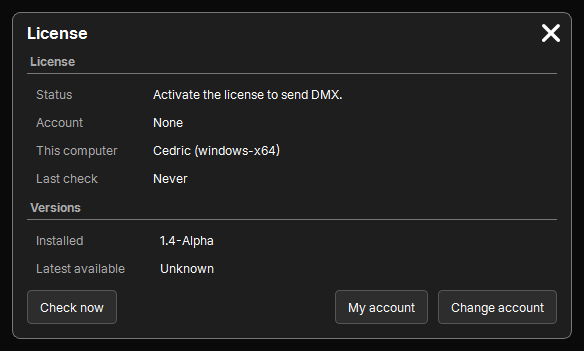
| Line | What it says |
|---|---|
| Status | Active, or why the output is cut |
| Account | the account e-mail |
| This computer | the computer name and its system |
| Last check | the last answer from the server |
| Offline | how long the software can still run without a check |
| Versions | the installed version, the latest available, the minimum required |
- Check now asks the server right away (after a reactivation on the website, for example).
- My account opens your page on the website.
- Change account opens the activation again.
Offline
The software checks the license at startup, then every 24 hours. Without internet, it keeps working normally for 30 days after the last successful check; it warns you from day 25. A connection, even a short one, is enough to start again for 30 days.
Before a cut-off
If the license must be cut (deactivated on the website, computer removed, version too old), the software never cuts in the middle of a show without warning:
- a popup 30 minutes before, then 5 minutes before;
- at 5 minutes, Postpone 1 h gives one more hour, once;
- once cut, the DMX output sends nothing, and a gray veil over the Layouts reminds you (Activate the license button).
Changing computers
On the website, My account page → Activated computers:
- Remove frees the place: the old computer will cut its output at its next check (after the 30-minute delay).
- Then activate the software on the new computer.
- A removed computer stays in Removed computers: Reactivate (if there is a place left) or Delete.
Reporting a bug or suggesting an improvement
The Report a bug / an improvement button, at the top of the window, sends your message to your account on the website:
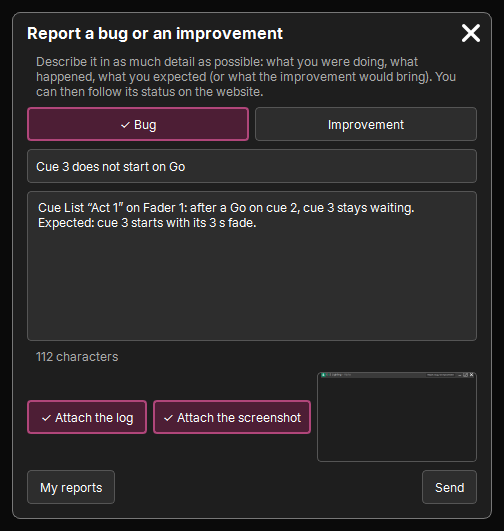
- Choose Bug or Improvement, give a short title.
- Describe it in as much detail as possible: what you were doing, what happened, what you expected.
- Leave Attach the log (the last lines of the software log and the crash reports of the week) and Attach the screenshot (the screen at the moment of the click) checked: they help a lot.
- Send. Without internet, the message is kept and goes out on its own at the next license check.
You then follow its status on the website, My reports page: accepted, in progress, done (with the version that brings it) or declined, with the reason.
After an unexpected shutdown of the software, the Unexpected shutdown popup at the next start offers Report: the crash report goes out with your description.