
Selecting
There are two kinds of selection in E&S Lighting:
- the cell selection: cues, rows, table cells, pool tiles… to change or copy them all at once;
- the programmer fixture selection: the fixtures you are setting.
The cell selection
There is no Select mode to turn on: you select directly, with the mouse or a finger.
Selecting
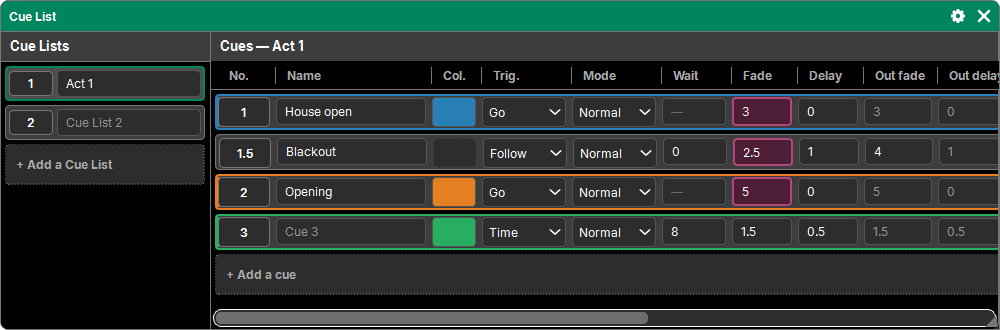
Drag from a cell (or from the background of the list): a dotted rectangle is drawn, and every cell it touches is selected. They take a selection color.
- The selection keeps the order: the starting cell first, then the others in the order the rectangle touched them (top to bottom, left to right for those touched at the same time). This order matters for a value typed in sequence (see below).
- Near the edge of the list, it scrolls on its own and the rectangle follows.
- A selection holds only one kind of cell: cues or groups, not both. Cells of another kind than the first are refused.
- For a single cell: a small drag on it.
- In some tables (cues, profile channels, Patch, DMX Output, DMX Input, Timecode…), pressing a column title selects the whole column, from top to bottom.
A new rectangle replaces the previous selection.
Editing the whole selection
- Pressing a selected cell edits it for the whole selection: choosing a value in a drop-down list, a color, a mode… applies to every selected cell, in one go (a single Undo).
- A selected text field does not open for editing: type the value on the pad or the keyboard, it is written in the command line, then Enter.
- Pressing elsewhere (on a cell that is not selected) empties the selection, then that cell alone is edited normally.
Exception: a pad action waiting for its target (Copy, Move…) keeps the selection, since it uses it.
A value in sequence
Select cells that take a value, type it on the pad without an action, then Enter: each cell receives it, in selection order. What follows on goes in sequence:
- Patch addresses "1.1": 1.1, then the next free address for each fixture;
- IP addresses "10.0.0.11": .11, .12, .13…;
- universes, channel numbers: in sequence.
Other values are the same for all. The command line shows what will be set ("Address 1.1") before Enter.
Touch
- One finger sliding draws the selection rectangle.
- Two fingers scroll the list, in both directions.
- A short tap of one finger is a normal press.
A single finger waits a very short moment before it counts (in case the second one arrives to scroll): this is what avoids selecting or opening a field when you meant to scroll.
Mouse
- Drag with the left button: the rectangle.
- Wheel: scrolls. A drop-down list does not change value with the wheel while it is closed, so nothing changes when scrolling a table.
- A click on a text field does not open it for editing right away if you start dragging: you can draw a rectangle starting from a name.
Emptying the selection
Esc (or the Esc key): a first press empties the selection; the next one cancels the action in progress on the pad. See The command pad.
The fixture selection
This is the programmer selection: the fixtures whose attributes you set (see The Programmer). You make it:
- on the pad: Fixture 1 Thru 50 Enter, or a number, a sub-fixture (101.3), a range in the order you want (50 Thru 1). See The command pad;
- in a Layout: pressing a fixture selects it (another press deselects it); a rectangle drawn on the background (mouse in Select mode) adds the fixtures it touches, in drawing order. See Layout;
- with Groups: pressing a group selects its fixtures, in the group order. See Groups.
The Fixtures window shows the selection (highlighted rows, Select filter) but does not make one.
The selection adds up… then starts over
As on grandMA: as long as no value has been changed, a new selection adds to the previous one (a group, then another, then fixtures on the pad). As soon as a value has changed, the next selection starts from scratch; the values set stay in the programmer.
Removing and stepping through
- Clear releases the selection (first step), then deactivates and empties the programmer (see Clear).
- Off then a group, a fixture of a Layout, or Fixture N Enter: these fixtures leave the selection and the programmer.
- < > step through the selection fixture by fixture, Set goes back to the whole selection. See Highlight, Solo, Set.