
The Programmer
The programmer is your workspace, just like on grandMA: you select fixtures, give them values and effects, then store the result in a cue, a preset or a group. Whatever is in the programmer is output live.
The programmer is not saved in the show and does not go through the history: it is a scratchpad. Only what you store is kept.
The Programmer window
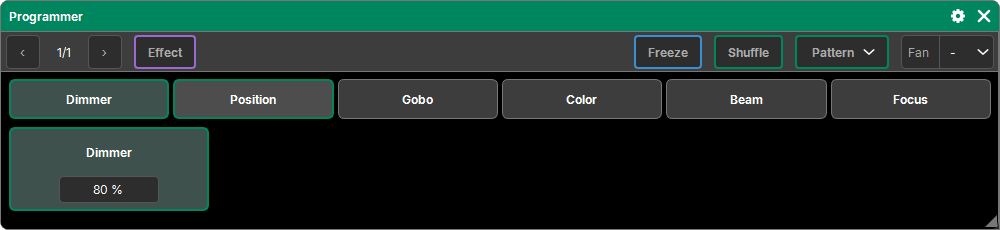
"Add a window" → Programming → Programmer. It fits in three rows, with no scrolling at all:
- The tools: on the left ‹ 1/2 ›, the attribute pages of the family shown; then the Effect button (see Effects); on the right Freeze, Shuffle, Pattern and the Fan list.
- The families of the patched fixtures (Dimmer, Position, Color, Gobo…), sharing the width.
- The attributes of the chosen family, four per page, as tiles.
Families
- A tap chooses the family to show (green-gray background).
- A family that no fixture of the selection has is grayed out and cannot be chosen.
- A family with a value in the programmer is outlined in the programming color (darker outline if its values are inactive); purple if one of its attributes has an effect.
- A double tap on a family brings it into the programmer as it is currently output, like On (see below).
- The attribute page of each family is kept until Clear: coming back to a family finds it where you left it.
Attribute tiles
A tile shows the attribute name and, at the bottom, its value: the average of the selection. For a fixture that is not in the programmer, this is what is really output (the running Cue List, a fade in progress…), updated live.
- A set tile is outlined in the programming color, on a green-gray background; inactive (after Off or Clear), only the outline, darker.
- An attribute specific to a profile (not in the library) also shows each fixture's value under its number.
Selecting fixtures
Fixtures are selected:
- from the keypad: Fixture then a number or a range, then Enter: "Fixture 1 Thru 50"; "50 Thru 1" selects in descending order; a sub-fixture is written "101.3", the head alone "101.0";
- with a tap on a group (see Groups);
- in a Layout, with a tap or by drawing a rectangle (see Layout);
- in the Fixtures window (see Fixtures).
The selection rule, as on grandMA: as long as no value has been changed, a new selection adds to the previous one. As soon as a value has changed, the next selection starts from scratch; the values already set stay in the programmer.
The selection order matters: it drives the spread of a value range, the Fan and the effect offsets. It is arranged in the Grid.
Giving a value
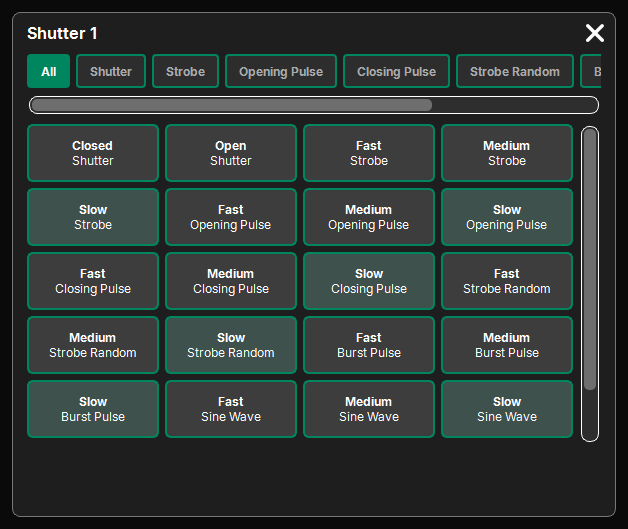
- Typing: a tap in a tile's field clears it, ready to type; Enter confirms. Left without typing anything, it goes back to its value and nothing is sent. The keypad digits go into the field being edited.
- The value goes to the whole selection, each fixture in its own function and limited to its range.
- A range "0 Thru 100" is spread over the selection, in grid order (first fixture: 0, last: 100). With several points, "0 Thru 100 Thru 0" makes a bump. The direction is set with the Fan and the Pattern.
- Predefined values: a tap on the tile's name opens its named values as tiles (Open, Closed, Gobo 3, Strobe…). A channel with several functions (a Shutter: Shutter, Strobe, Pulse…) shows its functions as categories at the top, preceded by All. The engaged value is highlighted. The popup reopens on the last function chosen for this attribute, until Clear.
Units, RGB or CMY
The gear of the Programmer window sets the display, without changing anything that is sent or stored:
- Colors → Program in RGB or CMY: the color tiles show Red, Green, Blue or Cyan, Magenta, Yellow; input follows, converted onto each fixture's real attributes.
- Units: for each attribute that has a physical unit, Real value (°, Hz, s…) or %.
On, Off and Release
These keypad keys act on the programmer when you then tap an attribute (its name) or a family, for the selected fixtures:
| Key | Effect |
|---|---|
| On | the attribute enters the programmer at its current value, without the light moving (an inactive value becomes active again) |
| Off | its values leave the programmer: the light goes back to what is underneath (the Cue List, otherwise the default) |
| Release | the cell gets a Release value: nothing is output from the programmer; stored in a cue, it releases that cell of the Cue List |
On whole fixtures:
- Off then Enter: the whole selection leaves the programmer (and the selection); "Off Fixture 5 Enter" too, or Off then a group, a fixture of a Layout or of the Grid.
- Release then Enter: all the attributes of the selection; "Release Fixture 1 Thru 5" too.
A quick double tap on Off or On gives Park or Unpark: see Park.
Highlight, Solo and stepping through
- Highlight: the selected fixtures output their Highlight values (those of the profile; failing that, Dimmer at full and Shutter open), above everything. A toggle: a second tap turns it off.
- Solo: the intensities of all other fixtures are output at 0. A toggle too.
- < and >: the selection is stepped through fixture by fixture; what you set only applies to the current one (handy for setting positions one by one). Clear goes back to the whole selection; another selection ends the stepping.
- Set (between < and >): a tap toggles between the whole selection and the sub-selection you came from. Held with > or <: one fixture in 2, in 3… (the Interleave of grandMA2). With a mouse, hold Set for a moment then release: it stays engaged until the next tap.
Highlight, Solo and stepping through go neither into the programmer nor into a cue.
The toolbar tools
Freeze
When lit (in ice blue), the programmer stays above the Cue Lists, even after a more recent Go (only a Cue List with Super priority still goes over it). It stays lit until you turn it off; Clear does not touch it.
Shuffle
The Shuffle of grandMA3: the selected fixtures swap their grid cells at random. Everything that reads the grid follows: value ranges, Fan, effects.
- Each tap moves to the next shuffle ("Shuffle 3", lit); the same number always gives the same shuffle.
- The small cross goes back to the original order.
- The draw is spread out: two fixtures that were neighbors before are not after, even across thousands of fixtures.
Fan
The Align of grandMA: the direction in which a range "a to b" is spread.
| Symbol | Spread |
|---|---|
| - | no direction imposed (like <) |
| < | from the first fixture to the last |
| > | from the last to the first |
| >< | a at the edges, b in the center |
| <> | a in the center, b at the edges |
Clear does not touch it.
Pattern
It opens the Pattern panel, the MAtricks of grandMA3: see The Pattern.
The programmer's priority
The programmer outputs on a "latest takes precedence" basis against the Cue Lists, like grandMA:
- each value is timestamped when it is set: set after the Go of a Cue List, it goes above (intensities included);
- a cue that changes that value afterwards takes over again; a value that is only tracked does not;
- a Cue List with Super priority stays above;
- with the programmer emptied, the light goes back to the Cue Lists.
With Freeze, the programmer keeps control even after a more recent Go.
Clear
Clear only touches the programmer, in three steps, like grandMA:
- if there is a selection (or a shuffle, a Pattern): the selection is released, then the Pattern;
- otherwise, if there are active values: they are deactivated. They stay and the light does not move, but they will no longer go into a store;
- otherwise: the programmer is emptied, effects included.
If you were stepping through the selection with < / >, the first Clear first goes back to the whole selection.
The Grid
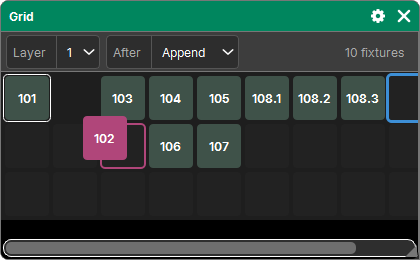
Each selected fixture has an x, y, z cell, like the Selection Grid of grandMA3. It gives the order of spreads, the Fan, the Pattern and effects.
- A selection made from the keypad or by tapping is placed one after the other on the cursor's row.
- A group, a preset or a rectangle in a Layout brings its own grid (in a Layout: one column per position, one row per height), placed at the cursor.
- A deselected fixture leaves its cell empty; a new selection (after a value changed, or Clear) starts again from cell 0, 0.
- Two fixtures at the same x, y place on different layers receive the same value.
The Grid window (Programming) shows the grid:
- the layer shown (Layer list), the fixtures at their number ("101", "101.3"), the origin in a white frame, the cursor in blue;
- a tap on a cell puts the cursor there;
- dragging a fixture puts it on another cell (the one that was there takes its place); dragging elsewhere scrolls;
- Off then a fixture removes it from the programmer;
- After: where the cursor goes after a selection: Stay, Append (default) or New line.
Storing
The active content of the programmer is stored with Store then the target:
- a cue: see Storing cues;
- a preset (only the pool's family): see Presets;
- a group (the selection): see Groups.
A store also keeps each fixture's cell in the grid, and the Pattern times.