
Masters and Speed Masters
A Fader or a Button does not necessarily play a Cue List: it can also carry a group's Master (its intensity) or a Speed Master (a speed shared by effects). See also Faders and Buttons.
Placing a Master or a Speed Master
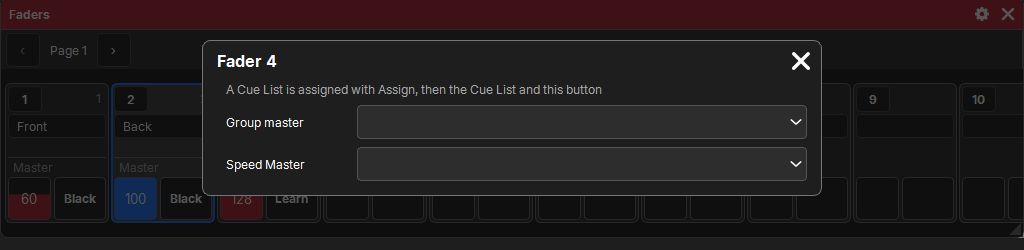
- In the Faders or Buttons window, tap the number of an empty slot. The settings open.
- Choose Group master (then the group) or Speed Master (then which one; "+ New" creates one).
If several empty slots are selected, they receive groups or Speed Masters one after the other: Master of group 1 on the first, of group 2 on the next…
A Cue List, on the other hand, is placed with Assign (see Faders and Buttons).
Group Masters
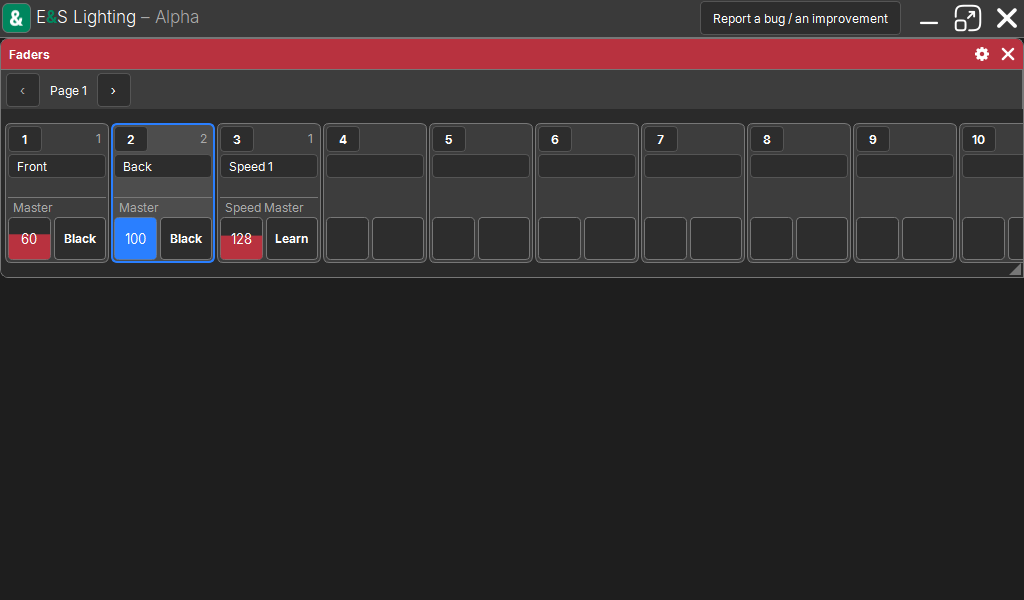
The square of a Master Fader sets the intensity of its group's fixtures by multiplying it: at 50%, a fixture sent at 80% comes out at 40%. This applies to everything that plays (Cue Lists, programmer).
Its button, to choose in the settings:
| Function | Effect |
|---|---|
| Black | at 0 while pressed |
| Flash | at full while pressed |
| Toggle | cut / restored at each press |
The Grand Master
There is no separate Grand Master: make a group of all the fixtures and put its Master on a Fader. It acts as a Grand Master.
A Master with no slot carrying it, or when the show is reopened, is at 100%.
Speed Masters
A Speed Master is a shared speed that effects follow instead of their own BPM: they stay in sync with each other. It only drives effects, not cue times.
The Speed window
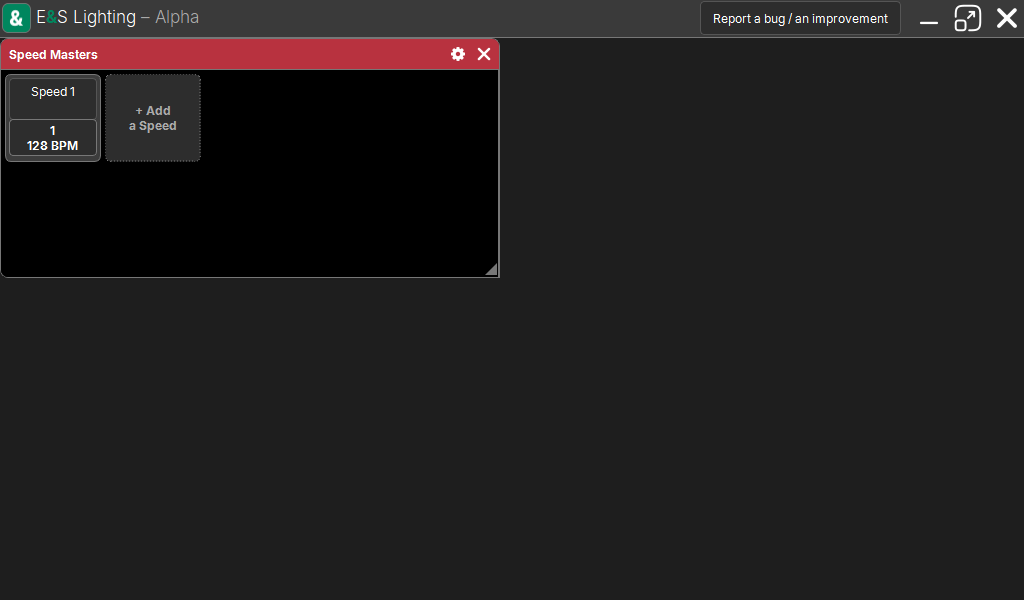
"Add a window" → Playback → Speed. Speed Masters are shown as tiles; the square shows its number and its BPM.
- A tap on the square taps the tempo (Learn).
- "+ Add a Speed" creates one; Delete, Copy, Move follow the common procedure (see The lists).
Making an effect follow a Speed Master
In the effects editor, the Speed list of a line (or of the family band): Own, or a Speed Master. See Effects.
Setting the tempo
| Command | Effect |
|---|---|
| the square of a Speed Fader | the BPM, within the fader range (0 to 225 BPM by default, adjustable) |
| Learn (button or tile) | the tempo is tapped: it takes the rhythm of your taps and immediately realigns the effects to your finger |
| ×2, ÷2 | doubles or halves the BPM |
| 60 BPM | resets to 60 |
| Scale (settings) | multiplies or divides its speed, from ÷4 to ×4 |
- Learn: the first tap of a series (after more than 2 seconds without a tap) restarts from the first step, each following tap moves forward one beat.
- ×2, ÷2 and 60 BPM can go outside the fader range; moving the fader brings it back.
- Changing speed does not make effects jump: only Learn realigns them.
- Effects with Synced start mode on a Speed Master: they follow its beats, together.
The name and the Scale go through the history; the BPM is a setting of the moment, kept in the show.
Several slots at once
Select several slots (rectangle with one finger) then tap the number of one of them: the settings apply to the whole selection, and only show what they have in common. The color, the group, the Speed Master, its Scale and the fader range can be set in one go this way.