
Faders and Buttons
Faders and Buttons are the executors of grandMA: numbered slots that play a Cue List, control a group's Master or a Speed Master.
- a Fader has a level square and a button;
- a Button only has the button.
The Faders and Buttons windows are in the Playback category.
Pages and numbers
- At the top of the window, ‹ Page 1 › changes the page. The page is shared: changing it changes it in all Faders and Buttons windows, on all screens.
- Each screen shows 18 slots of the page, in sequence: the main screen numbers 1 to 18, the next screen 19 to 36, and so on.
- A window that is too narrow scrolls its slots horizontally, by dragging.
- What a slot holds (its Cue List, its function, its color) is kept in the show. Its level, however, is the current state: it is not saved.
A slot
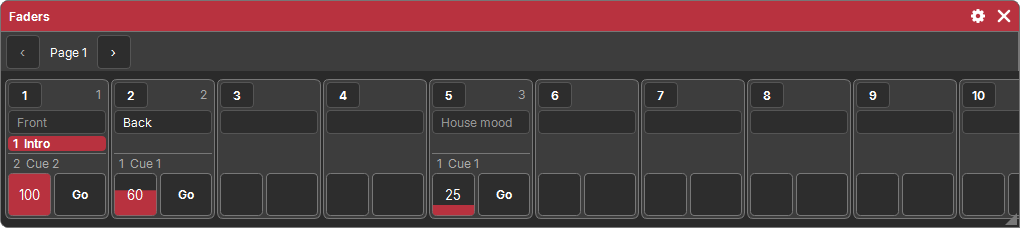
From top to bottom:
- on the left, the slot's number (a tap: its settings); on the right, the number of its Cue List;
- its name, always editable. Empty, it shows its Cue List's name in gray;
- the current cue, in bold, then the next cue, in a lighter style. When a cue comes in, its background moves from right to left over its whole duration. A tap on this area opens the cue table;
- for a Fader, the level square: it fills from the bottom, with the percentage written in the middle. Drag in it to set the level: at the top 100 %, at the bottom 0;
- the button, with its function written on it ("Go", "Flash"…).
A free slot only has its number.
Giving a Cue List to a slot
- Assign, then a Cue List (in the left column of a Cue List window), then the button of a Fader or a Button: it receives it.
- Or Store then the button of a free slot: a new Cue List is created with the programmer in its cue 1, and the slot receives it (see Storing cues).
The same Cue List can be on several slots, on several pages: its current cue is the same everywhere, because it is the Cue List that plays, not the Fader.
The button and the pad
With no pad key, a tap on the button performs its function (below). With a key, the button is the object of the action:
| Key | Effect on the slot |
|---|---|
| Assign | receives the source Cue List; with no Cue List as source, it becomes the source itself, to be placed in a Layout |
| Store | the programmer goes into a new cue of its Cue List |
| On | its Cue List turns on at once, with no fade, at its start cue |
| Off | its Cue List stops |
| Delete | the slot is freed (the Cue List itself stays) |
| Copy, Move | the common sequence: see Delete, copy, move |
Button functions
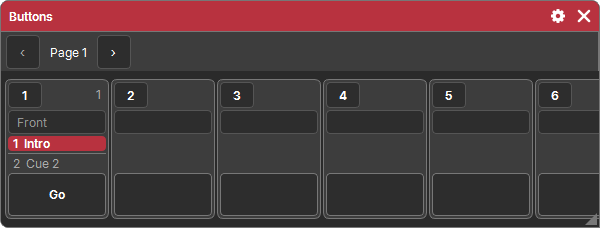
For a Cue List:
| Function | When pressed |
|---|---|
| Go | the next cue, with its times (stopped: it starts according to its Restart; paused: it resumes) |
| Go− | the previous cue, with its times |
| Top | the first cue, with its times |
| Pause | freezes the running fades; a new press (or Go) starts them again |
| Flash | while pressed, the Cue List is at full and its values come on top, with no times; stopped, it starts at its start cue. On release, everything goes back to how it was (started by the press: it stops) |
| Temp | while pressed, the Cue List is on, with its times. On release, it goes to its Temp release cue if it has one, otherwise it fades out with its cue's out times |
| Toggle | stopped: it starts (with its times); playing: it fades out with its cue's out times |
| Off | it stops |
For a group Master: Black (at 0 while pressed), Flash (at full while pressed), Toggle (cut, then restored).
For a Speed Master: Learn (tap the tempo in rhythm), ×2, ÷2, 60 BPM.
Fader functions
| Function | The square… |
|---|---|
| Master | gives the Cue List's level. Leaving 0, it starts it if it is stopped (Auto Start); otherwise, it performs its Master Go. Brought back to 0, it stops it (Auto Stop) |
| Temp | gives the level; leaving 0 it starts the Cue List, coming back to 0 it releases it (like releasing a Temp button) |
| X-Fade | makes the transition to the next cue by hand: leaving 0 it begins, at the top the cue is played. You then have to bring it back down to 0 before the next one |
| Rate | sets the speed of its times: in the middle, normal speed; at the bottom, 4 times slower; at the top, 4 times faster |
Auto Start, Auto Stop and Master Go are Cue List settings (see Cue List).
A Cue List's level is that of the highest of its Faders in Master or Temp (all pages); with no Fader, or started from a Button, it is at 100 %.
Slot settings
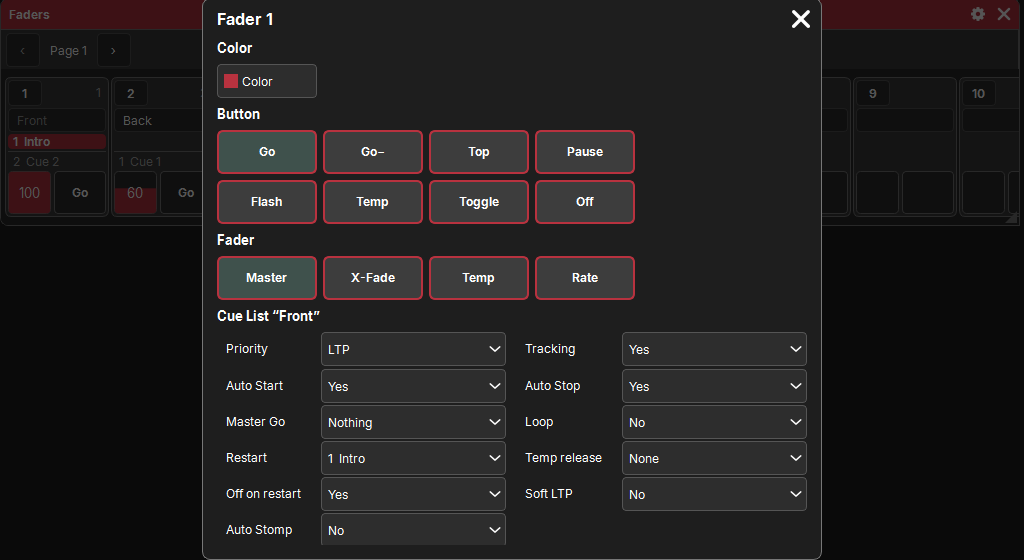
A tap on a slot's number opens its settings. With several slots selected (a rectangle drawn over the window), they apply to all of them.
On a free slot, the popup offers to give it:
- Group master: the list of groups;
- Speed Master: the list of Speed Masters, or + New (a new one per slot).
Several free slots selected receive the groups (or the Speed Masters) in sequence, starting from the one chosen.
On an assigned slot:
| Section | Setting |
|---|---|
| Color | the color of the slot (by default, that of the Playback category) |
| Group / Speed Master | what a Master or a Speed Master controls |
| Scale, Fader range (BPM) | for a Speed Master: see Masters and Speed Masters |
| Button | the button's function |
| Fader | the square's function (Faders only) |
| Cue List "…" | the settings of its Cue List: see Cue List |
Changing a fader's function puts its square back to its neutral position (in the middle for Rate, at the bottom for X-Fade).
The cue table
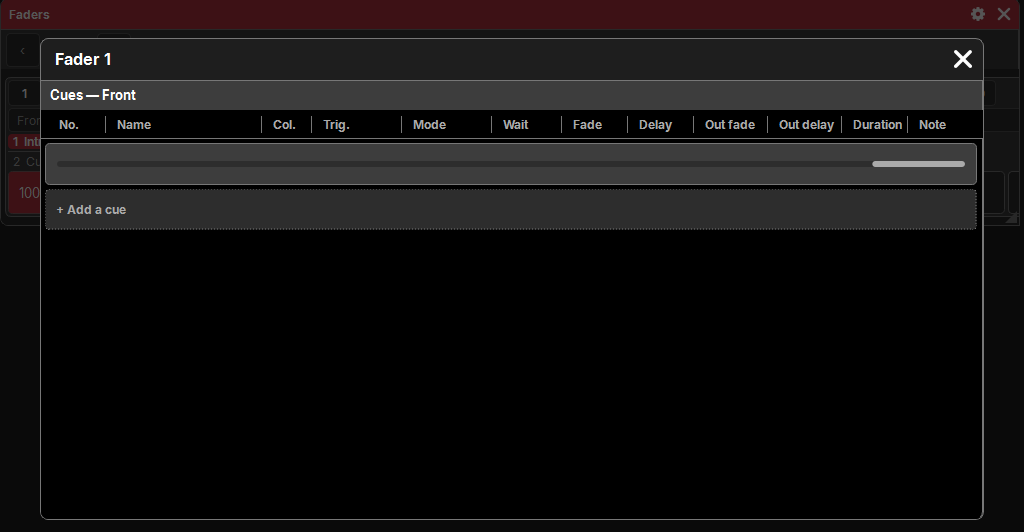
A tap on the cue area of a slot opens, in a large popup, the same table as in the Cue List window, for its Cue List: same columns, same gestures (go to a cue, Off, edit a cell, Store…). It follows the changes while it is open; the cross closes it.
Masters and Speed Masters
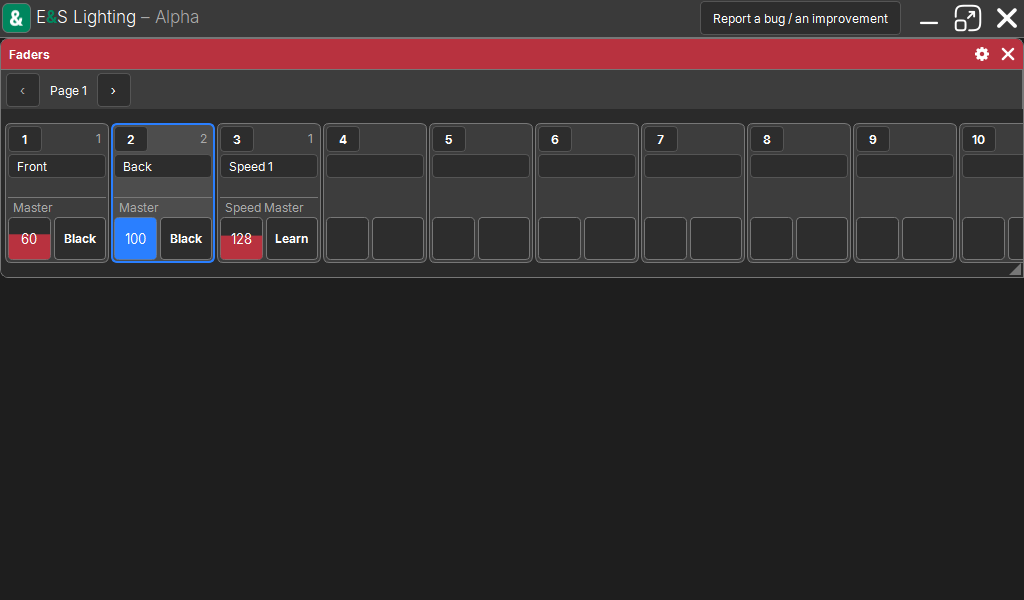
A slot can hold:
- a group Master: it multiplies the intensity of the group's fixtures. The Master of the All group serves as Grand Master. A Master only counts while a slot holds it: removed, its fixtures go back to 100 %;
- a Speed Master: the speed of the effects that follow it.
Their name: a Master shows its group's name as long as you do not give it one; a Speed Master is renamed from its slot. See Masters and Speed Masters.
In a Layout
A Fader or a Button placed in a Layout keeps its page: it does not follow the page shown. It can take a Large appearance there (a large fader with a handle) or Custom (a square that sends a specific cue).