
Cue List
A Cue List is a series of cues (the sequence of grandMA): each cue is a lighting state, with its times. You play it from a Fader or a Button (see Faders and Buttons), an Action or Timecode.
The Cue List window is in the Programming category of "Add a window".
The window
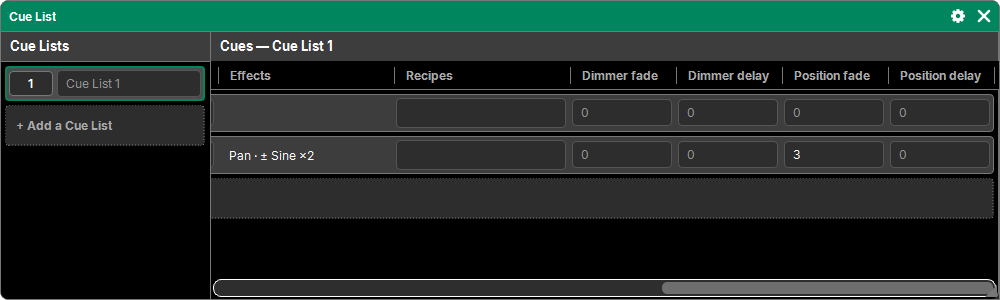
- On the left, the show's Cue Lists. Tapping one shows it on the right and makes it the active Cue List: the one the command line targets ("Store Cue 5"…). + Add a Cue List creates a new one.
- On the right, the cues of the Cue List shown, as a table. + Add a cue, at the bottom, stores the programmer into a new cue, at the next whole number after the last one (see Storing cues).
- The column widths and the Cue List shown are remembered with the window (and in Views). Several Cue List windows can show different Cue Lists.
A Cue List without a name shows as "Cue List 1", a cue without a name as "Cue 1.5": just type a name in its cell.
Cue numbers
- A number goes from 0.01 to 9999.99, with at most two decimals:
1,1.5,2.25. - A decimal cue ("1.5") is a cue in its own right, slipped in between 1 and 2.
- Cues are always sorted by number.
The columns
| Column | What it holds |
|---|---|
| No. | the number: it is the cue's button (see below) |
| Name | its name, typed directly |
| Col. | the color of its card (a tap opens the color picker) |
| Trig. | its trigger: Go, Time or Follow |
| Mode | Normal, Assert or Break |
| Wait | the wait time of a Time or Follow trigger |
| Fade | the in fade |
| Delay | the delay before the in fade |
| Out fade | the fade of intensities going down (empty: same as the fade) |
| Out delay | the delay of intensities going down (empty: same as the delay) |
| Duration | the total length of the transition (calculated, read only) |
| Note | free text |
| Effects | its effects, summarized (read only) |
| Recipes | its recipe lines, summarized; a tap shows them all (see Recipes) |
Then, for each attribute family present in the Cue List (Dimmer, Position, Color…), two columns: its own fade and delay (see below).
Times
- Times are typed in seconds (
2.5or2,5) or in minutes:seconds (1:30), to the hundredth of a second, up to 9999.99 s. - A cleared Fade, Delay or Wait is 0.
- A cleared Out fade or Out delay takes the in time.
- The Duration is the longest delay + fade of the cue: in, out, family or value times.
The trigger
| Choice | The cue starts… |
|---|---|
| Go | by hand: a Go (a Fader's button, an Action, Timecode) |
| Time | on its own, its Wait after the start of the previous cue |
| Follow | on its own, its Wait after the end of the previous cue (its duration) |
A chain of Time or Follow cues runs by itself after a Go. Nothing starts during a Pause or a manual X-Fade; the remaining time resumes afterwards.
The mode
| Mode | Effect |
|---|---|
| Normal | the cue only keeps what changes (tracking) |
| Assert | when it starts, all the values of its state (including those it inherits) come back on top: they take over from the programmer and from the other Cue Lists |
| Break | tracking stops at this cue: it inherits nothing from the cues before, and the following ones track from it |
Times per family
A family's fade and delay columns give all the values of that family their own times in the cue: for example a Position fade of 5 s in a 2 s cue. Cleared, the cell takes the cue's times.
A value can also have its own time, given by the Pattern when it is stored: the cue's fade or delay cell then shows it on hover ("Pattern fade, per fixture"). Order of priority: the value's time, then its family's, then the cue's.
Gestures on a cue
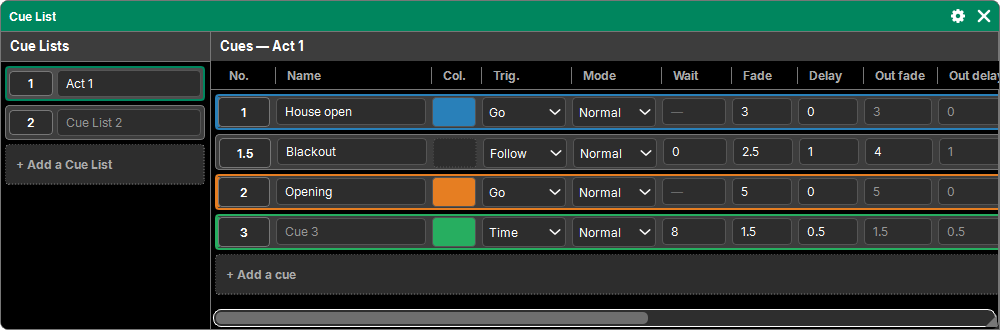
- Tapping the number of a cue (with no pad key): the Cue List goes there directly, with no delay or fade. Handy for finding your place in rehearsal.
- With a pad key, the number is the object:
- Store then the number: the programmer goes into that cue (see Storing cues);
- Off then the number: the Cue List stops;
- Delete, Copy, Move: see Storing cues.
- Cells (name, times, note) are edited in place. With several cells selected (a rectangle drawn with a finger or the mouse, or a column title for the whole column), the typed value goes to all of them, in a single history step. The same choice (trigger, mode, color) applies in the same way to the whole selection. See Selecting.
On a Cue List in the left column:
- with no key, a tap shows it;
- Off then the Cue List: it stops;
- Assign then the Cue List: it becomes the source, to be placed afterwards on a Fader or a Button;
- Delete, Copy, Move: the common list sequence (see Delete, copy, move).
The current cue and the next one
A Cue List in playback has a current cue, the same everywhere (Cue List window, Faders, Buttons): it is the Cue List that plays, not the Fader.
- The current cue is highlighted in the table. When it starts, a colored band moves from right to left over its whole duration (delays included): you can see the cue coming in.
- The next cue is the one the next Go will start: the next one in order, or the first one after the last if the Cue List loops.
Playing a Cue List
The playback commands are on the buttons of Faders and Buttons, and in Actions:
| Command | Effect |
|---|---|
| Go | the next cue, with its times. Stopped: it starts again according to its Restart. Paused: it resumes |
| Go− | the previous cue, with its times |
| Top | the first cue, with its times |
| Pause | freezes the running fades; Go or Pause starts them again from where they were |
| Off | stops the Cue List at once |
The others (Flash, Temp, Toggle, and the fader functions) are described in Faders and Buttons.
Cue List settings
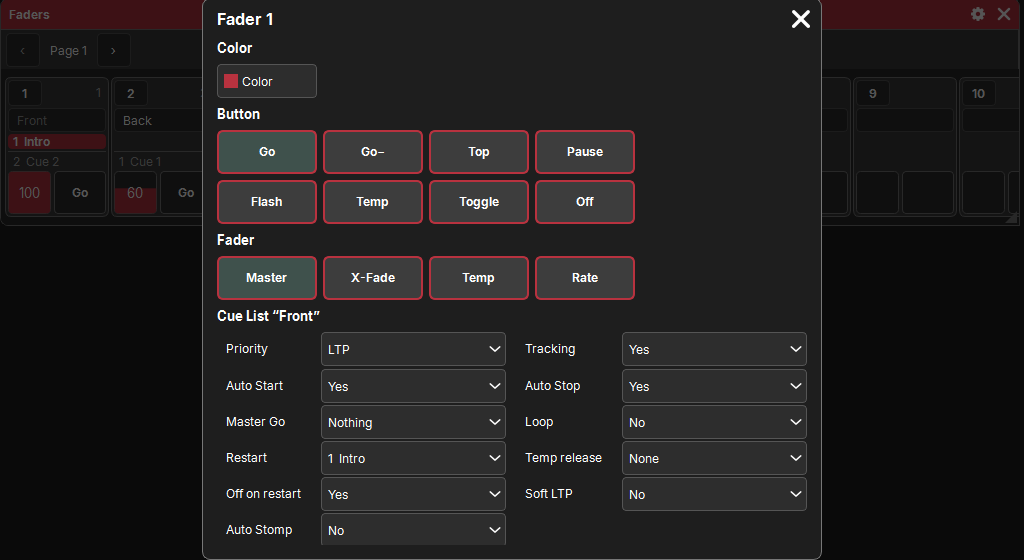
They are set in the settings popup of a Fader or Button that holds the Cue List (a tap on its number), section Cue List "…":
| Setting | Default | Effect |
|---|---|---|
| Priority | LTP | its output priority: Very low, Low, LTP, High, Very high, HTP, Swap, Super |
| Tracking | Yes | No: each cue only gives its own values, nothing from the cues before |
| Auto Start | Yes | a fader leaving 0 starts the stopped Cue List |
| Auto Stop | Yes | a fader brought back to 0 stops it |
| Master Go | Nothing | without Auto Stop, what a fader leaving 0 does on a Cue List that is playing: Nothing, Go, On (reloads the current cue), Top |
| Loop | No | a Go on the last cue goes back to the first |
| Restart | the first cue | where a stopped Cue List starts again: Current cue (where it was), Next cue, or a chosen cue |
| Temp release | None | where the Cue List goes when a Temp is released: None (it fades out) or a chosen cue |
| Off on restart | Yes | when all its cells are taken over by other Cue Lists, it goes off |
| Soft LTP | No | on the fader, its attributes other than intensity go from what is underneath to its value, following the fader's travel (otherwise: as soon as the fader leaves 0) |
| Auto Stomp | No | its fixed values stop the effects of other Cue Lists on the same cells (otherwise: a fixed value goes under an effect of another Cue List of the same or lower priority) |
Set for several selected Faders or Buttons, the settings apply to all their Cue Lists (except Restart and Temp release, which name a cue).
A damaged cue
If the show file has been damaged (power cut while writing, full disk…), unreadable cues are reported when the show opens (Damaged cues popup): what is missing stays empty, the rest of the show is untouched. Storing the cue again replaces what is damaged.